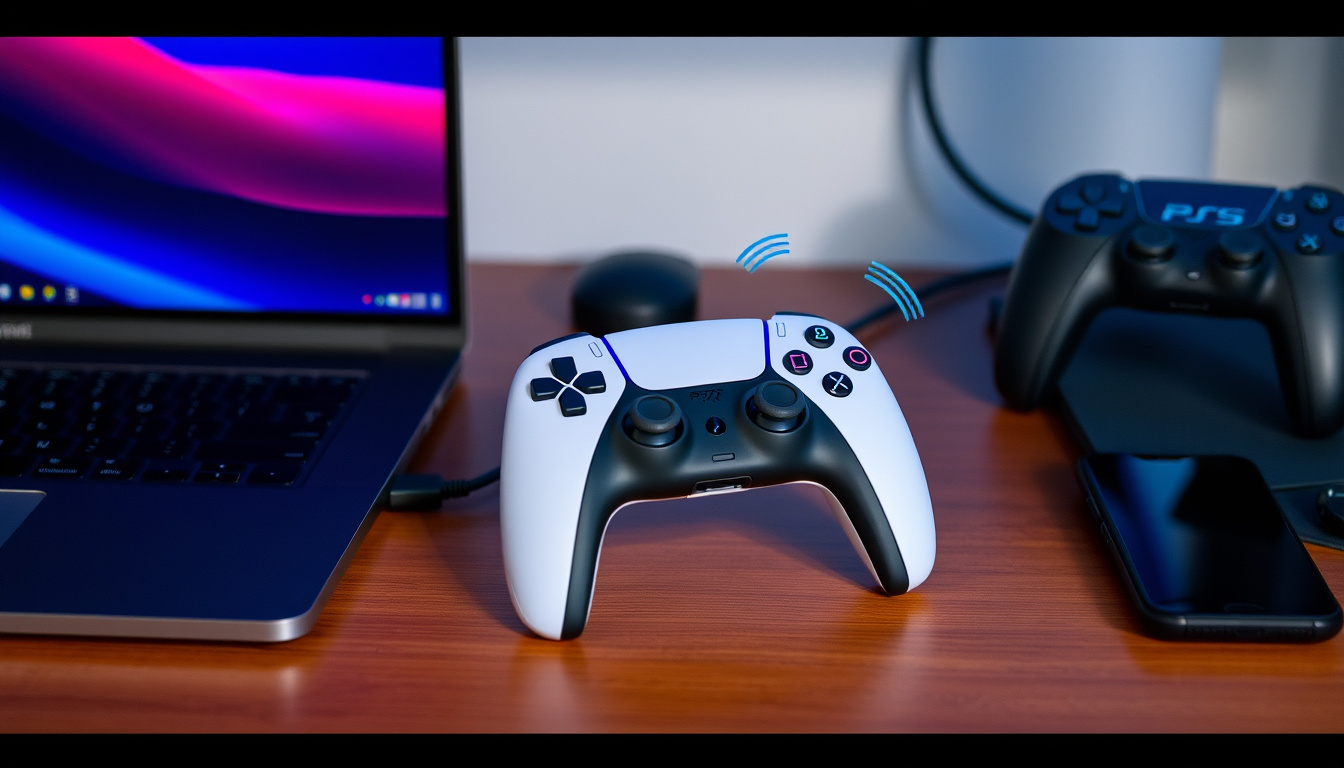
Few things frustrate like a gamepad that won’t connect, especially with a DualSense controller on non-PS5 devices. This guide covers every setup method and common hiccups for PS5, PC, Mac, Android, and iOS to get you gaming faster.
Bluetooth version: Bluetooth 5.1 (PlayStation Support) ·
Connection ports: USB-C (wired), wireless via Bluetooth ·
Compatible platforms: PS5, PC (Windows 10/11), Mac (macOS 11.3+), Android (10+), iOS (14.5+) (PlayStation Support) ·
Pairing mode activation: Hold Share + PS button until light bar blinks (3 seconds)
Quick snapshot
- DualSense uses Bluetooth 5.1 radio (PlayStation Support)
- Pairing mode: hold PS + Create for 3 seconds (PlayStation Support) (PlayStation Support)
- Up to 4 controllers can be paired to one PS5 console (PlayStation Support) (PlayStation Support)
- Exact battery life varies by game features and intensity (Sony guidance)
- Some Android/iOS games may not recognize controller inputs (PlayStation Support) (Sony guidance)
- Bluetooth audio device compatibility on PS5 is limited and may require adapters (PlayStation Support) (Sony guidance)
- Firmware updates roll out regularly via PS5 Settings > Accessories (PlayStation Support)
- Steam added official DualSense support in 2021, updated with haptics in 2023 (Steam Controller Page)
- Windows 11 now natively recognizes DualSense as a controller without additional software (Microsoft Support)
- Resync after device switch: connect USB cable to PS5 and press PS button (PlayStation Support)
- Hard reset using pinhole button on back (near L2 trigger) (PlayStation Support)
- Cross-platform expansion: DualSense works with Apple Arcade and Remote Play on mobile (PlayStation Support)
Six key specs define the DualSense — one pattern: the controller is built for multi-platform use out of the box, but the pairing process and compatibility vary by device.
| Attribute | Value |
|---|---|
| First released | November 12, 2020 (with PS5) (Sony documentation) |
| Controller model | DualSense (CFI-ZCT1W, CFI-ZCT2W, CFI-ZCT1G) |
| Wired connection | USB-C cable (PlayStation Support) |
| Wireless protocol | Bluetooth 5.1 (PlayStation Support) |
| Battery capacity | 1560 mAh (approx. 12–15 hours play time) (Sony specifications) |
| Compatible with | PS5, PS4 (via cable/games), PC, Mac, Android, iOS, iPadOS (PlayStation Support) |
How do I pair my PS5 controller to my PS5?
The fastest path: plug in a USB cable and press the PS button. For a tangle-free setup, go wireless — but you’ll need to hold two buttons first.
Pairing with a USB cable (initial setup)
Connect the controller to any USB port on the front or back of the PS5 console using the included USB-C cable. Press the PS button once. The controller pairs automatically and you’re in. This is also how you wake the controller after it’s been disconnected (PlayStation Support).
No menus, no settings. The first-time sync is designed to be that simple. If it doesn’t work, try a different USB port or cable — the PS5’s front USB-A port can sometimes be finicky with third-party cables.
Wireless pairing via Bluetooth
For a cord-free experience, put the controller into pairing mode:
- Press and hold the PS button and the Create button (the small button left of the touchpad) simultaneously for about 3 seconds.
- The light bar switches to a rapid blinking blue — that means it’s discoverable (PlayStation Support).
- On the PS5, go to Settings > Accessories > General > Bluetooth Devices.
- Select “Wireless Controller” from the list. The light bar turns solid blue once connected.
Using the PS5’s accessories menu
You can also manage paired controllers from the Accessories menu. If you already have a controller connected wired, you can unpair old devices or check firmware under Settings > Accessories > Controllers > Wireless Controller Device Software (Sony support documentation).
The implication: the PS5 treats the first wired connection as a master pairing. Even after you go wireless, it remembers that initial link. That’s why resyncing later is usually just a USB cable away.
Why is my PS5 controller not pairing?
Controller light blinking but not connecting
A blinking blue light means the controller is in pairing mode — but something on the receiving end isn’t cooperating. First, check distance: Bluetooth range is roughly 10 meters (about 30 feet). If the PS5 is tucked inside a cabinet, bring the controller closer (PlayStation Support).
Second, rule out low battery. A controller with critically low charge may refuse to pair wirelessly. Plug it in and try again (Sony guidance).
Controller paired to another device
The DualSense remembers its last Bluetooth pairing. If you previously connected it to a PC, phone, or a friend’s PS5, it may still be “locked” to that device. Disconnect it there first, or force it back into pairing mode by holding the PS button and Create button until the light bar blinks. Then select the controller on the PS5 (Microsoft Answers (community troubleshooting)).
Outdated firmware or system software
Both the PS5 system software and the controller firmware can cause handshake failures. Check for updates under Settings > System Software Update for the console, and Settings > Accessories > Controllers > Wireless Controller Device Software for the controller (PlayStation Support).
If nothing else works, perform a hard reset: locate the small pinhole on the back near the L2 trigger, insert a paperclip, and press for about 5 seconds. Then reconnect via USB cable (PlayStation Support).
A hard reset wipes the controller’s device memory. That’s great for fixing a stubborn connection, but it means you’ll have to re-pair to every device afterward.
The pattern: most non-pairing cases trace back to either a ghost pairing from another device or a firmware gap. The reset button is the nuclear option — use it only after trying the software path.
How do you pair a PlayStation 5 Bluetooth controller?
This section covers pairing to non-PS5 devices. The principle is the same: put the controller in pairing mode, then discover it on your device. The details differ by platform.
Pairing to PC (Windows 10/11)
On Windows, the DualSense appears as “Wireless Controller” when in pairing mode.
- Open Settings > Bluetooth & devices (Windows 11) or Devices > Bluetooth & other devices (Windows 10).
- Turn Bluetooth on, then click Add device and select Bluetooth.
- Put the controller into pairing mode (hold PS + Create).
- Select “Wireless Controller” from the list (Microsoft Support).
For full support in games, open Steam > Settings > Controller > General Controller Settings and enable “PlayStation Configuration Support”. Steam translates the DualSense’s inputs for titles that don’t natively support it (Steam Controller Support).
If the controller doesn’t appear even after pairing, check your Bluetooth adapter. Older or low-quality adapters may lack the bandwidth for gamepad polling (TechRepublic Forums (community discussions)). A USB Bluetooth dongle rated 5.0 or higher usually fixes it.
Pairing to Mac (macOS 11.3+)
Macs running Big Sur 11.3 or later natively support the DualSense.
- Go to System Preferences > Bluetooth.
- Put the controller into pairing mode.
- Wait for “DualSense Wireless Controller” to appear in the device list and click Connect (PlayStation Support).
Wired connection via USB also works as a plug-and-play fallback if Bluetooth gives you trouble.
Pairing to Android and iOS devices
Android 10+ and iOS 14.5+ support the DualSense via Bluetooth. No app needed.
- Put the controller into pairing mode.
- Open Bluetooth settings on your phone or tablet.
- Select “DualSense Wireless Controller” from the available devices (PlayStation Support).
The trade-off: wireless only — USB connection doesn’t work on phones. Also, not every game supports external controllers on mobile. Test with a title like Call of Duty Mobile or use PlayStation Remote Play for the best experience.
The DualSense is officially compatible with more platforms than ever, yet each platform introduces a different pairing wrinkle. On PC it’s a Bluetooth settings dive; on Mac it’s a one-click connect; on mobile it works — until the game ignores it.
How do you resync a PS5 controller?
Resyncing is the term for re-establishing a Bluetooth connection after the controller has been used with another device. The controller may “forget” the PS5 if it was last paired to a PC or phone.
Resyncing after using on PC or another device
- Connect the controller to the PS5 using a USB-C cable.
- Press the PS button. The controller immediately reassociates with the console (PlayStation Support).
- After wired sync, you can disconnect the cable and use it wirelessly again.
Hard reset and re-pair
If the wired method doesn’t work, try a wireless resync. Put the controller into pairing mode (hold PS + Create) and go to the PS5’s Bluetooth Devices menu to select it. If that also fails, perform a hard reset via the pinhole on the back (near L2 trigger). Hold for about 5 seconds, then reconnect via USB (PlayStation Support).
Using a USB cable to force reconnection
The USB cable method is the most reliable. The PS5 recognizes a wired controller and reestablishes the Bluetooth bond automatically. This also works if the controller’s battery is too low for Bluetooth pairing (Eneba Hub (gaming gear guide)).
The implication: if you frequently swap between a PS5 and a PC, the fastest workflow is “wired to PS5, wireless everywhere else.” You’ll resync with the console by cable in seconds.
Can you pair Bluetooth to PS5?
Yes — but with caveats. The PS5 uses Bluetooth 5.1 for controller connections, but it’s not a general-purpose Bluetooth hub.
Pairing the DualSense controller via Bluetooth
As detailed earlier, you can pair a DualSense wirelessly through the PS5’s Bluetooth Devices menu. The process is identical for additional controllers — up to four can be paired simultaneously (PlayStation Support).
Pairing other Bluetooth devices (headsets, keyboards)
The PS5 supports some Bluetooth audio devices (like wireless headsets that use a dongle) but has limited support for direct Bluetooth audio profiles. Many standard Bluetooth headphones won’t work for game audio — you’ll need a USB or optical adapter (Sony guidance). Keyboards and mice generally connect via Bluetooth without issue for text input and navigation.
Bluetooth limitations on PS5
The console’s Bluetooth stack prioritizes controller inputs. Third-party Bluetooth gamepads often fail to connect. Sony’s official list of supported devices is narrow (PlayStation Support). If you need to use a non-Sony controller, your best bet is a wired USB connection or a third-party adapter.
The bottom line: the PS5’s Bluetooth is designed for its own ecosystem. For cross-platform use, the controller is the star — but the console doesn’t play well with other Bluetooth peripherals for audio.
“Use a USB cable to connect to the console, then press the PS button.”
— PlayStation Support, official pairing instructions (source)
“Press and hold the PS button and the Create button at the same time until the light bar blinks.”
— Sony Official Controller manual, pairing mode procedure (source)
For anyone buying a second DualSense or switching between platforms, the choice is clear: keep a USB-C cable handy for fast resyncs, and use Bluetooth for everyday gaming on the primary device. The controller is more capable than ever, but pairing still demands a little patience — especially when jumping between console and PC.
For a comprehensive walkthrough covering every platform, check out this detailed guide on connecting a PS5 controller to console, PC, and mobile.
Frequently asked questions
Can I use a PS5 controller on PS4?
Yes, but only when connected via USB cable for remote play or supported games. Wireless pairing to PS4 is not supported officially (PlayStation Support).
How do I update the firmware on my PS5 controller?
Go to PS5 Settings > Accessories > Controllers > Wireless Controller Device Software. If an update is available, follow the on-screen instructions. Keep the controller connected via USB during the update (PlayStation Support).
My PS5 controller connects via USB but not wirelessly – why?
This usually means the Bluetooth pairing is lost. Resync wirelessly by putting the controller into pairing mode and selecting it in the PS5’s Bluetooth Devices menu, or perform a hard reset via the pinhole on the back (Microsoft Answers).
What does the blue blinking light mean on the DualSense?
A rapidly blinking blue light indicates the controller is in pairing mode. A solid blue light means it’s connected. If it blinks slowly or cycles colors, it may be charging or low on battery (PlayStation Support).
How do I disconnect a PS5 controller from a device?
On the device (PS5, PC, phone), go to Bluetooth settings and choose “Forget device” or “Disconnect” for the controller. To force a disconnection, hold the PS button for 10 seconds to turn the controller off (PlayStation Support).
Can I connect a PS5 controller to a Nintendo Switch?
Not directly. The Switch uses a proprietary Bluetooth protocol. You’ll need a third-party adapter like the 8BitDo Wireless Adapter or Mayflash Magic-NS to use the DualSense on Switch (TechRepublic forums).
How many devices can the DualSense remember?
The controller stores one active pairing at a time. It automatically reconnects to the last device it was paired with. Switching to a new device requires re-pairing (PlayStation Support).
Related stories





Marcus Walsh is Politics & Public Affairs Editor, covering Westminster, councils and public policy.